Travel eSIM not working after landing? Check these settings in order
No Service, bars but no internet, or a home line quietly using data? Start with the reversible checks and work toward the provider-specific ones.
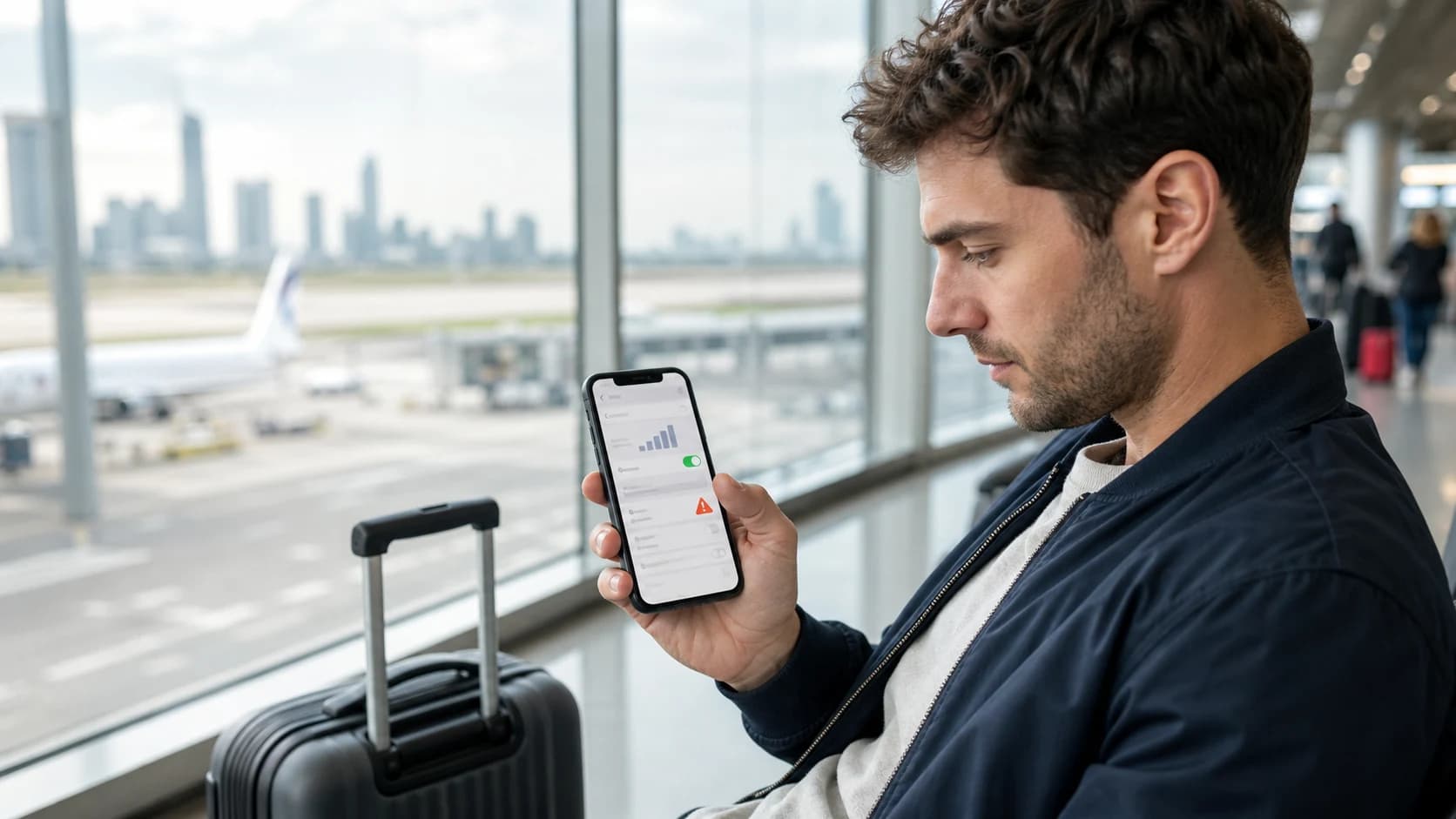
Do not delete the eSIM. Confirm the plan is active and covers the country, turn on the travel line, select it for mobile data, enable roaming for that line when required, and leave network selection on automatic. Switch Wi-Fi off to test. If it still fails, toggle airplane mode, restart once, verify the provider’s APN instructions, and contact support with screenshots and the displayed network.
Signal and internet are different problems
“The eSIM does not work” can describe several different states. No Service or SOS means the line has not registered on a mobile network. Signal bars with no internet means registration succeeded but the data path, plan, or settings may still be wrong. Working apps while Wi-Fi is on proves only that Wi-Fi works.
Identify the symptom before changing anything. Look at the status bar, turn Wi-Fi off for the test, and note whether a carrier name or mobile-network icon appears. That observation tells you where to start and gives support a much clearer report if you need help.
| Symptom | Likely area | First check |
|---|---|---|
| No Service or SOS | Network registration | Coverage, line status, roaming, automatic network selection |
| Bars but no internet | Data routing or APN | Travel line selected for mobile data, plan status, APN |
| Internet only on Wi-Fi | Mobile data not proven | Switch Wi-Fi off and load a new webpage |
| Home carrier shows data use | Wrong data line | Select the travel eSIM and turn off automatic data switching |
| Worked, then stopped | Allowance, validity, or local network | Check remaining data, expiration, and current destination |
Do not delete the eSIM
Deletion is not a refresh button. Many activation QR codes are designed for one installation, so removing the profile may prevent you from adding it again without provider help. Almost every useful diagnostic step can be completed while the eSIM stays installed.
Keep the purchase email, QR code, manual activation details, and order reference. Avoid posting the QR code, full ICCID, or other identifiers publicly. If support needs an identifier, send it only through the provider’s official support channel.
Safe actions first
Turning a line off and on, changing the selected data line, toggling airplane mode, and restarting the phone are reversible. Deleting the profile is not always reversible.
Confirm the plan is live in this country
Open the order or plan details while you still have Wi-Fi. Confirm that fulfillment completed, the destination is on the exact coverage list, the validity period has begun, and the data allowance is not exhausted. A successfully installed profile does not prove that the attached package is active.
On a multi-country trip, check the current country again rather than relying on the regional label. If the plan worked yesterday and stopped after a border crossing, coverage or partner-network registration is a stronger lead than installation.
Order fulfilled
The plan should be delivered and associated with the installed profile.
Current country covered
Read the country list, including the exact territory where you are standing.
Validity active
Check both the start rule and the expiration time.
Data remaining
A capped plan may stop or slow after the allowance is used.
Turn on the right line and route data to it
Open the phone’s SIM or cellular settings and find the label assigned during installation. Make sure that line is turned on. Then open the mobile-data preference and select the travel eSIM. On a dual-SIM phone, an active travel profile can show signal while the home line remains the selected source for data.
Turn off automatic cellular-data switching while you troubleshoot. That keeps the result unambiguous and reduces the chance of the phone falling back to the home line. If you keep the home line active for calls or messages, its data roaming should normally remain off unless your home carrier plan explicitly covers the destination.
Find the travel eSIM by label
Do not rely only on line order or unfamiliar carrier names.
Turn on that line
The profile can remain installed while the line itself is disabled.
Select it for mobile data
Only one line normally supplies cellular data at a time.
Disable automatic data switching
Keep the phone from silently testing or using the home line instead.
Enable roaming on the travel line
Travel eSIMs often connect through partner networks, which means the phone may classify the connection as roaming even though that roaming is part of the travel plan. If the plan instructions tell you to enable data roaming, turn it on for the travel eSIM line.
Be precise: enabling roaming on the travel line is different from enabling it on the home line. On phones with per-line controls, open the travel profile before changing the switch. Menu names vary by device and operating-system version, so follow the manufacturer path that matches your phone.
Why this does not mean home-carrier roaming
The travel line uses the allowance attached to the travel plan. Charges on the home line remain governed by the home carrier, which is why its roaming setting should be managed separately.
Let automatic network selection work, then reset once
Leave network selection on automatic first. The eSIM is provisioned to use particular partner networks, and the phone normally chooses an eligible one. Manual selection too early can lock the phone to an unsupported network and make the symptoms harder to interpret.
Give registration a few minutes. If nothing changes, turn airplane mode on for about thirty seconds, turn it off, and wait again. Apple includes this step in its international-roaming troubleshooting. A single phone restart is also reasonable after the line and roaming settings are correct.
Use automatic network selection
This is the clean baseline for a newly enabled travel line.
Wait several minutes
Registration after landing or crossing a border is not always immediate.
Toggle airplane mode for about 30 seconds
This prompts a fresh radio and network-registration cycle.
Restart once
Reboot after the correct settings are in place, not after every individual change.
Check the APN only against the plan instructions
An Access Point Name, or APN, tells the phone how to reach the provider’s data service. Some eSIMs set it automatically; others include a specific APN in the installation guide. If you have signal bars but no internet after the earlier checks, compare the current APN with the provider’s exact instructions.
Do not copy a random APN from a forum or another plan. A value that works for a different provider can break the correct configuration. Enter capitalization and punctuation exactly as supplied, leave unspecified fields alone, and save the setting before testing again with Wi-Fi off.
Use the official value
Take it from the delivery email, plan page, or provider support—not a generic search result.
Change only requested fields
Username, password, authentication type, and other fields should remain untouched unless specified.
Retest without Wi-Fi
Load a new page so a cached result does not disguise the mobile-data state.
Give support a useful connection report
If the connection still fails, contact support while you have Wi-Fi. A concise diagnostic report is much more useful than “it does not work.” Include the order reference, current country and city, phone model, symptom, travel-line status, displayed network, and the steps already tried.
Attach screenshots of the SIM list, selected mobile-data line, roaming setting for the travel line, network-selection screen, and APN page when appropriate. Crop unrelated phone numbers and personal notifications. Send sensitive identifiers only if the official support team requests them through a private channel.
Where and when
Country, city, local time, and whether the issue followed a border crossing.
What the phone shows
No Service, SOS, a carrier name, signal bars, 4G, 5G, or another exact indicator.
What you already checked
Plan status, selected data line, roaming, automatic network selection, airplane mode, restart, and APN.
What still works
Mention whether Wi-Fi works and whether the eSIM worked earlier in the trip.
Finish with a clean mobile-data test
After any fix, switch Wi-Fi off and load a page you have not opened recently. Check a map route and send a message. Then open the phone’s mobile-data usage screen and confirm that usage belongs to the travel line.
Once it works, take screenshots of the successful settings. If you changed to a manual network at the provider’s direction, record its name. A two-minute record now can save a much longer troubleshooting session at the next border.
Quick answers
Why does my travel eSIM show bars but no internet?
The line may be registered while mobile data is routed to another SIM, the plan is inactive or exhausted, roaming is off, or the APN is wrong. Select the travel line for data, check plan status, follow its roaming instructions, and verify the official APN.
Should I manually select a network?
Start with automatic selection and allow time for registration. Use a manual network only when the provider’s instructions or support team identifies a supported option, then record which network worked.
Will deleting and reinstalling the eSIM fix it?
Do not assume so. Many QR codes permit only one installation, and deletion can make recovery harder. Keep the profile installed and contact support before removing it.
Why did the eSIM stop after crossing a border?
The new country may be outside the plan, the phone may still be trying the old network, or registration may be delayed. Confirm coverage, keep automatic selection on, toggle airplane mode once, and contact support if it cannot register.
Manufacturer references
Settings and device behavior can change with phone models, carriers, and software updates. These official references support the device guidance in this article.